


Olin > Blog > How to set up WiFi: access and configure your router
How to set up WiFi: access and configure your router
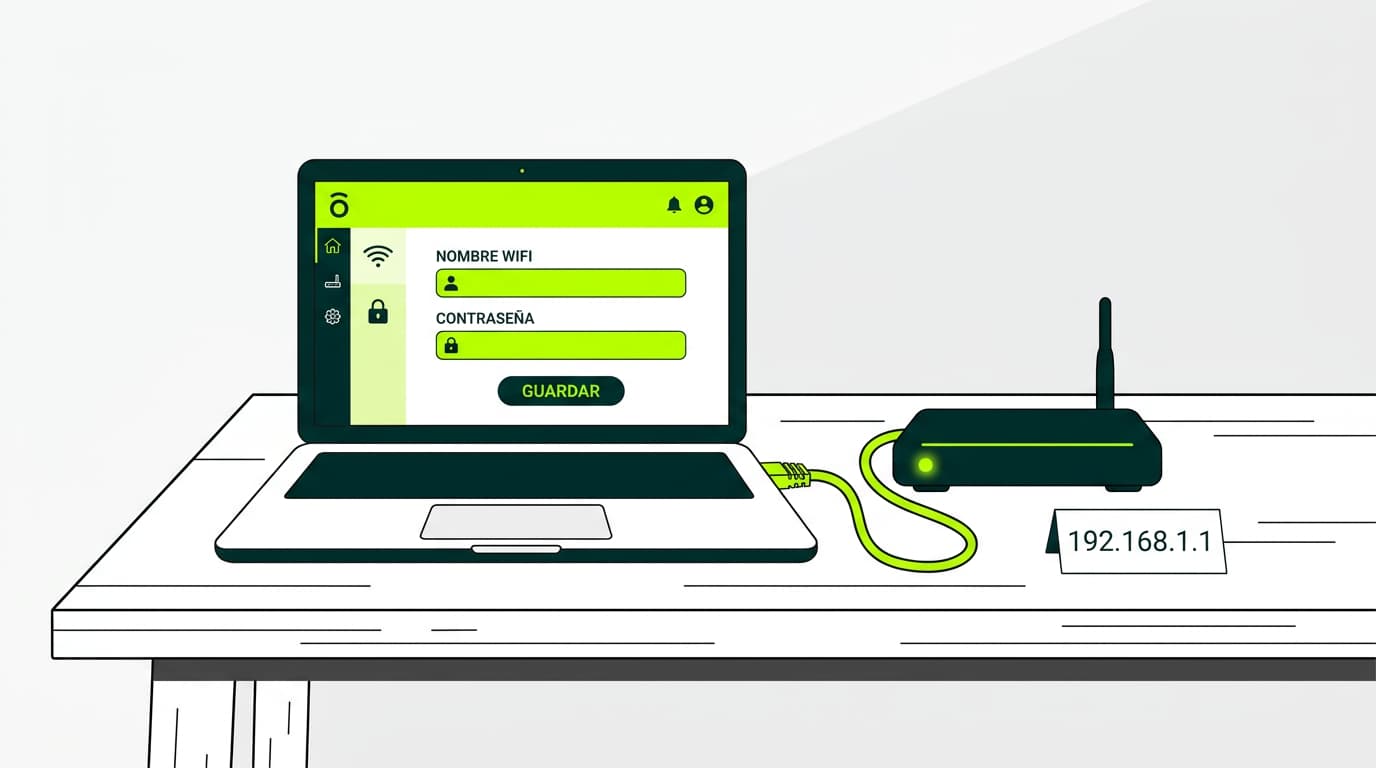
Learn how to set up your WiFi. Network name, password, channel… Find out how to access and configure your router and improve the security of your internet connection.
Have you recently moved house or just signed up for a new broadband connection? Although setting up WiFi can seem complicated, you can optimise your network by following this step-by-step guide. After some time has passed since your high-speed broadband installation, it’s a good idea to review your WiFi settings to achieve the best performance and keep your wireless connection secure.
How to access your router settings
The first step to set up WiFi is accessing your router’s admin panel. This is essential and similar to what you would do to change your WiFi password.
Start by connecting your device (ideally a computer) to the router, either via Ethernet cable (recommended to avoid interruptions during setup) or through the existing WiFi connection. Open your web browser and enter your router’s IP address in the address bar. It is usually:
192.168.1.1 or 192.168.0.1
If these don’t work, check the label on your router or the manufacturer’s manual.
Once you reach the login page, enter the username and password. These are typically found on the router label or in the documentation provided with your internet contract. If you can’t log in, you may need to reset the router to restore factory settings.
Do you want to know more?
How to configure your router connection
Your router’s admin panel is the control centre where you can adjust all WiFi settings. While the interface may vary depending on the model and manufacturer, the key elements are broadly the same.
Set your network name
Your WiFi network name, technically known as SSID (Service Set Identifier), plays an important role in both usability and security.
Choose a name that helps you identify your network easily without revealing personal information. Avoid using details such as your surname or flat number. Default names (like “MOVISTAR_XXXX” or “VODAFONE_XXXX”) can make your network easier to target, as they reveal your provider and router model.
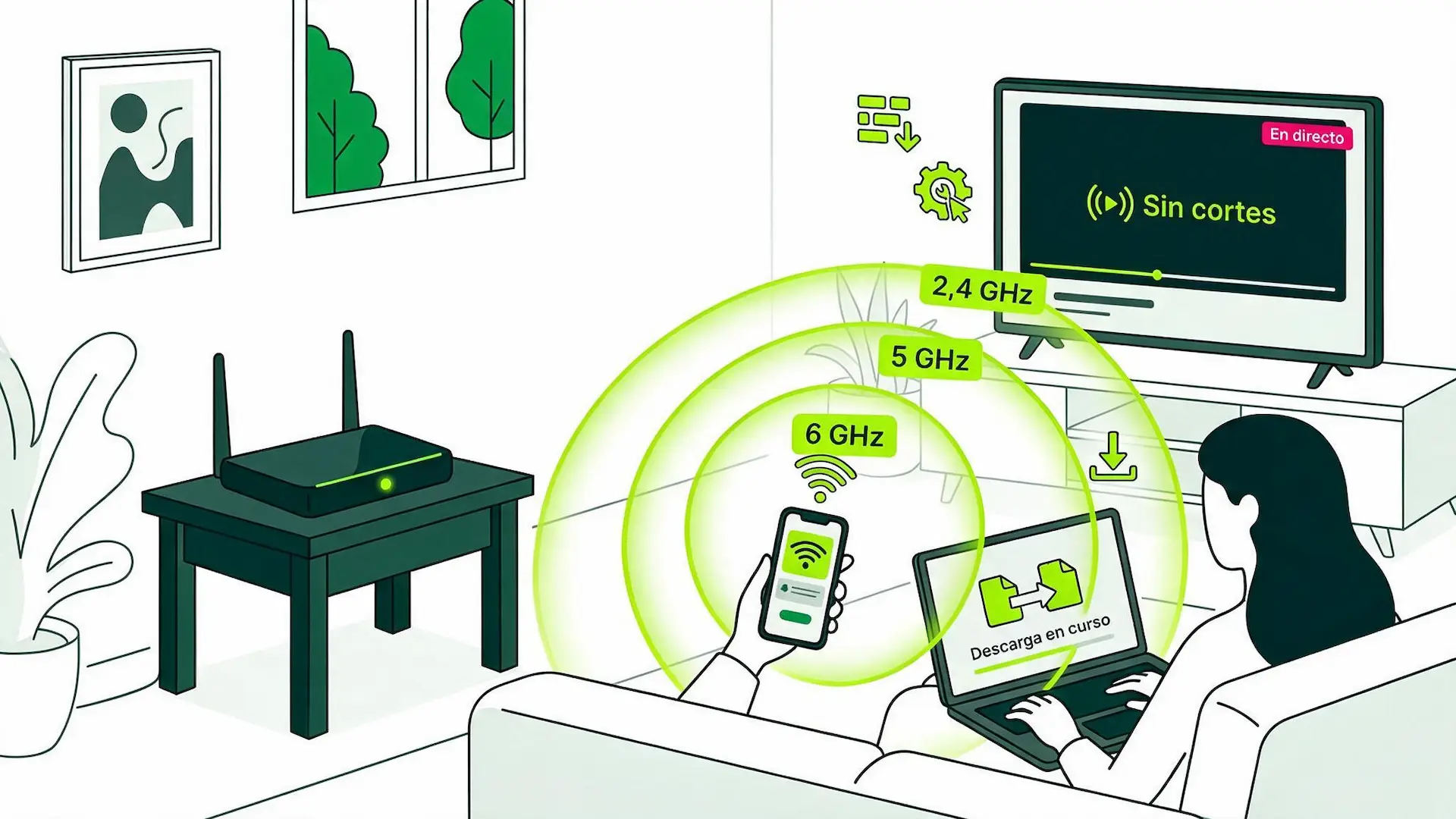
If you have a dual-band router (2.4GHz and 5GHz), it’s useful to give each network a distinct name. For example, you can add “_5G” to identify the faster 5GHz network. This helps you decide which devices connect to each band.
Set your password
Your WiFi security largely depends on having a strong password. Use at least 12 characters, combining uppercase and lowercase letters, numbers and symbols. The longer it is, the harder it is to crack. A practical approach is to create a memorable phrase and adapt it, for example: MiCatSleeps&Snores2026!
Change your password regularly, especially if you’ve shared it with guests or suspect unauthorised access. Keep a secure record of previous passwords to avoid reusing them.
Choose the right channel
Selecting the right WiFi channel can significantly improve performance, particularly in busy areas where many networks overlap. On the 2.4GHz band, there are 13 channels, but channels 1, 6 and 11 are recommended as they don’t overlap. You can use WiFi analyser apps to find the least congested channel in your area.
The 5GHz band offers more channels and less interference, making it suitable for high-demand devices like smart TVs or gaming consoles. However, its range is shorter and more affected by walls and obstacles.
Configure the DHCP server
The DHCP (Dynamic Host Configuration Protocol) server automatically assigns IP addresses to devices connected to your network.
Set an IP range that covers both current and future devices. For example, if you have 10 devices, a range from 192.168.1.100 to 192.168.1.200 gives you room for expansion.
The lease time determines how often devices renew their IP address. A 24-hour period works well for most homes. For devices like printers or home servers, consider assigning a fixed IP address outside the DHCP range. This ensures they are always accessible at the same address.
Sharing your WiFi securely
Sharing your WiFi access safely is an important part of managing your network. The simplest and most secure option is generating a QR code. Most smartphones can scan it directly from the camera, making connection quick without typing passwords.
Another option is setting up a guest network. Many modern routers support this feature, especially those compatible with WiFi 6. It allows internet access while keeping visitors separate from your main network and devices. You can also limit speed and connection time.
For quick connections, the WPS (WiFi Protected Setup) button is useful, although it’s best to disable it when not in use. If none of these options are available, you can always share your mobile data as a temporary solution.

Very Satisfied
The service is excellent, and we always pay the same amount. We’ve been customers for three years. The staff at the store are very professional and serve us in three different languages!