


Olin > Blog > How to Share Mobile Data with a PC: A Complete Guide
How to Share Mobile Data with a PC: A Complete Guide
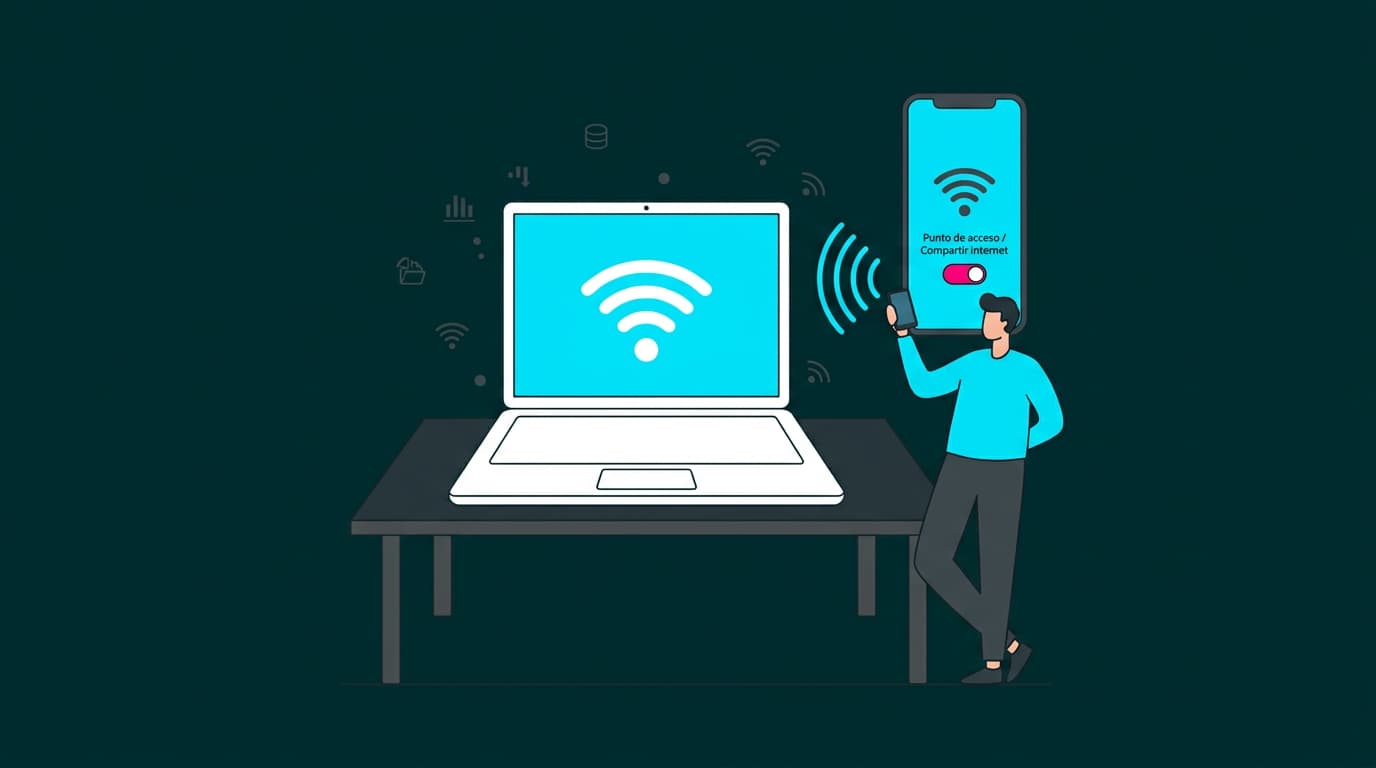
Learn how to share mobile data with your PC step by step from Android or iOS. Discover the easiest ways to connect your computer to the internet using your phone.
Have you ever lost your internet connection on your computer at the worst possible moment? It happens more often than you’d think.
The good news is that the solution might already be in your pocket. Your smartphone can quickly get your computer back online by sharing its mobile data connection.
In this guide, we’ll show you how to share mobile data with a PC, whether you’re using an Android device or an iPhone. We’ll also answer some common questions and share a few useful tips to help you manage your data more efficiently.
Can my phone share its internet connection with a computer?
Yes. Most modern smartphones, both Android and iOS, allow you to share mobile data with other devices, including computers. This feature is commonly known as tethering or mobile hotspot. It allows your phone to act like a small router, providing internet access to nearby devices.
How to share mobile data with a PC
There are several ways to share mobile data with a PC. The three most common methods are:
-
USB cable
-
Wi-Fi hotspot
-
Bluetooth connection
Let’s look at each option.
Share mobile data using a USB cable
This is often the simplest and most stable way to connect your computer to the internet using your phone. As an added benefit, your phone will charge while connected.
Step-by-step instructions
-
Connect your smartphone to your PC using a USB cable.
-
On your phone, go to Settings > Connections > Mobile hotspot and tethering.
-
Activate USB tethering.
-
Your PC should automatically detect the new network connection and connect to the internet.
Note: In some cases, your computer may need to install drivers for the connection to work correctly.
Share mobile data via Wi-Fi
Sharing mobile data via Wi-Fi is ideal if you want to connect multiple devices or if you don’t have a USB cable available. If you usually have issues with your home network, you might also find our guide on how to extend your Wi-Fi signal useful.
Share data from Android
-
Go to Settings > Connections > Mobile hotspot and tethering.
-
Tap Mobile hotspot and turn it on.
-
Set the network name (SSID) and password.
-
On your PC, search for the Wi-Fi network you just created and connect using the password.
Share data from iOS
-
Go to Settings > Personal Hotspot.
-
Activate Allow Others to Join.
-
Take note of the Wi-Fi network name and password displayed.
-
On your PC, connect to your iPhone’s Wi-Fi network using that password.
Share mobile data using Bluetooth
This method is less common, but it can be helpful if your PC doesn’t have Wi-Fi available.
Step-by-step instructions
-
Enable Bluetooth on both your smartphone and your PC.
-
On your computer, open Bluetooth settings and search for nearby devices.
-
Select your smartphone from the list.
-
Confirm the pairing request on both devices.
-
On your phone, go to Settings > Connections > Mobile hotspot and tethering and enable Bluetooth tethering.
Once paired, your computer should detect a network connection through Bluetooth. If it doesn’t connect automatically, you may need to configure it manually in your network settings.
Keep in mind that Bluetooth connections are usually slower than USB or Wi-Fi, so they’re best used only when the other options aren’t available.
Will sharing mobile data with a PC use a lot of data?
Yes, it can. When you share mobile data with your PC, activities like streaming video, downloading large files, or software updates can quickly consume your data allowance.
That’s why it’s a good idea to keep track of your usage. If you’re unsure how much data typical online activity requires, you might find it useful to check how many gigabytes a person uses per month.
Can I limit the data I share? How does it work?
Both Android and iOS offer ways to control data usage while sharing your connection.
On Android
-
Go to Settings > Connections > Mobile hotspot and tethering.
-
Tap Mobile hotspot.
-
Look for Data limit (this may vary depending on the manufacturer).
-
Set the maximum amount of data you want to allow.
On iOS
-
Go to Settings > Mobile Data > Personal Hotspot.
-
Enable Allow Others to Join.
-
Although iOS doesn’t include a specific hotspot data limit, you can manage overall usage in Settings > Mobile Data > Mobile Data Options > Data Mode.
Steps may vary slightly depending on the device model and operating system version.
Using your phone as a connection for your computer can be very helpful when you’re travelling, working remotely, or if your main connection stops working.
However, if you regularly need internet access for your computer, a stable home broadband connection will usually provide a faster and more reliable experience.
At Olin, we offer high-speed broadband plans designed for modern households. Our symmetric broadband delivers fast upload and download speeds, making it ideal for remote work, video calls, streaming and gaming.
If you want to improve your home connection, explore our plans or continue browsing the Olin blog for more tips to get the most out of your internet connection.

Very Satisfied
The service is excellent, and we always pay the same amount. We’ve been customers for three years. The staff at the store are very professional and serve us in three different languages!