


Olin > Blog > How to change your WiFi frequency
How to change your WiFi frequency
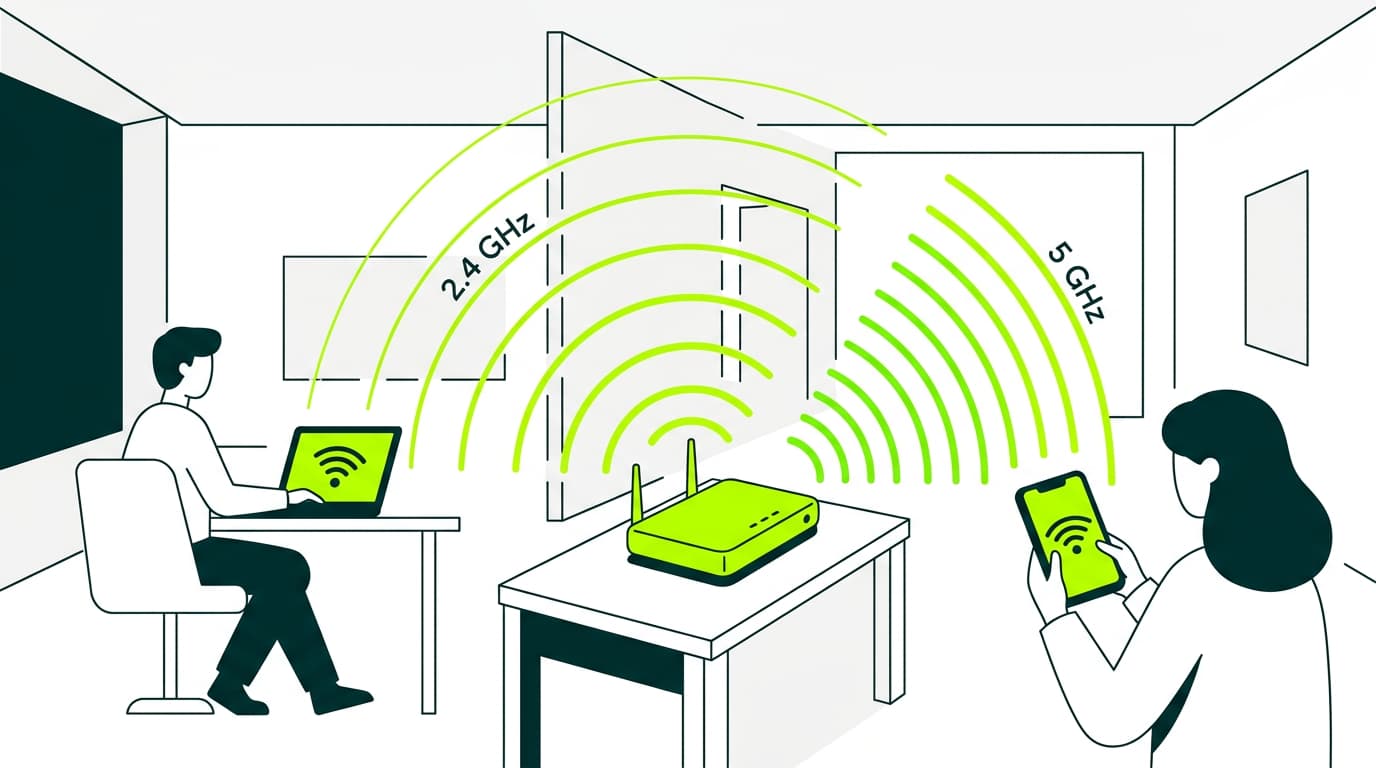
We explain how to change your Wi-Fi frequency step by step to improve your signal and boost your connection strength. Pay attention!
How to change your WiFi frequency
Having a good internet connection doesn’t depend only on the speed you’ve contracted. Very often, the issue is something much simpler: the WiFi frequency. Changing it can help you improve signal strength and avoid dropouts, especially if you live in an area with many nearby networks. In this guide, we explain how to change your WiFi frequency step by step.
What is the router frequency or bandwidth?
The frequency band is the range of electromagnetic frequencies that routers use to transmit data wirelessly over a WiFi network. These frequencies are measured in gigahertz (GHz) and determine key aspects of the signal, such as range, speed, and its ability to pass through obstacles.
Most modern routers broadcast on two different bands: 2.4 GHz and 5 GHz. These bands are the “roads” that data travels on between your router and connected devices. The 2.4 GHz band is slower but has greater range, while the 5 GHz band is faster but has shorter range.
Most modern routers allow devices to automatically choose which band to connect to. However, if you notice interference, dropouts, or slow speeds, it may be a good idea to manually change the router frequency.
What is a WiFi channel?
A WiFi channel is a specific subdivision within a frequency band (such as 2.4 GHz or 5 GHz) that allows wireless data transmission. Each channel represents a defined frequency range, and routers use these channels to communicate with connected devices.
Within each band there are multiple channels—like lanes within a road. If many nearby routers are using the same channel, interference can occur. That’s why changing the channel can sometimes improve your connection.
In the 2.4 GHz band there are 13 channels available in Spain, but only a few don’t overlap with each other. The 5 GHz band offers many more channels and is usually much less congested. For this reason, if your router and devices support it, using 5 GHz is often recommended.
Differences between 2.4 GHz and 5 GHz
The 2.4 GHz band has been widely used for years. It offers greater range and better wall penetration, but it’s also more congested. It’s ideal if you have a large home and the router is far away.
The 5 GHz band is newer and much less congested. It delivers higher speeds, making it perfect for streaming or online gaming, but it loses strength with distance and obstacles. The best option is to try both and see which works best for your setup.
If you want to dive deeper into the technical differences, you can explore comparisons between older connections and modern broadband, or learn how high-speed broadband works.
How to change your WiFi frequency step by step
Here’s how to change your WiFi frequency step by step. Take note.
1. Access your router’s control panel
Open a browser and enter your router’s access IP address. It’s usually 192.168.1.1 or 192.168.0.1, though this can vary by model. If you’re unsure, check the label on the router itself or the user manual.
2. Log in
You’ll need to enter a username and password. By default these are often “admin” / “admin” or “1234”. If you changed them previously, use your custom credentials. If you can’t remember them, you may need to reset the router.
3. Go to the WiFi or Wireless section
Once inside the panel, look for the section that manages the wireless network. It may appear as “Wireless Settings”, “WiFi Network”, “Wireless Configuration”, or something similar.
4. Change the frequency
In this menu, you should see the option to choose between 2.4 GHz and 5 GHz. In some cases, you can enable both bands at the same time and give each one a different name (for example, “Olin_2.4” and “Olin_5G”). This lets you manually choose which network each device connects to.
5. Save changes and restart the router
Once you’ve made the changes, save them and restart the router if required. Then reconnect your devices to the network you prefer.
If you’re still unsure whether your connection is fully optimised, you may want to check whether you have modern broadband at home, learn how to improve your WiFi signal, or review your broadband installation to make sure everything is set up correctly.

Very Satisfied
The service is excellent, and we always pay the same amount. We’ve been customers for three years. The staff at the store are very professional and serve us in three different languages!