


Olin > Blog > How to change DNS on your device step by step
How to change DNS on your device step by step
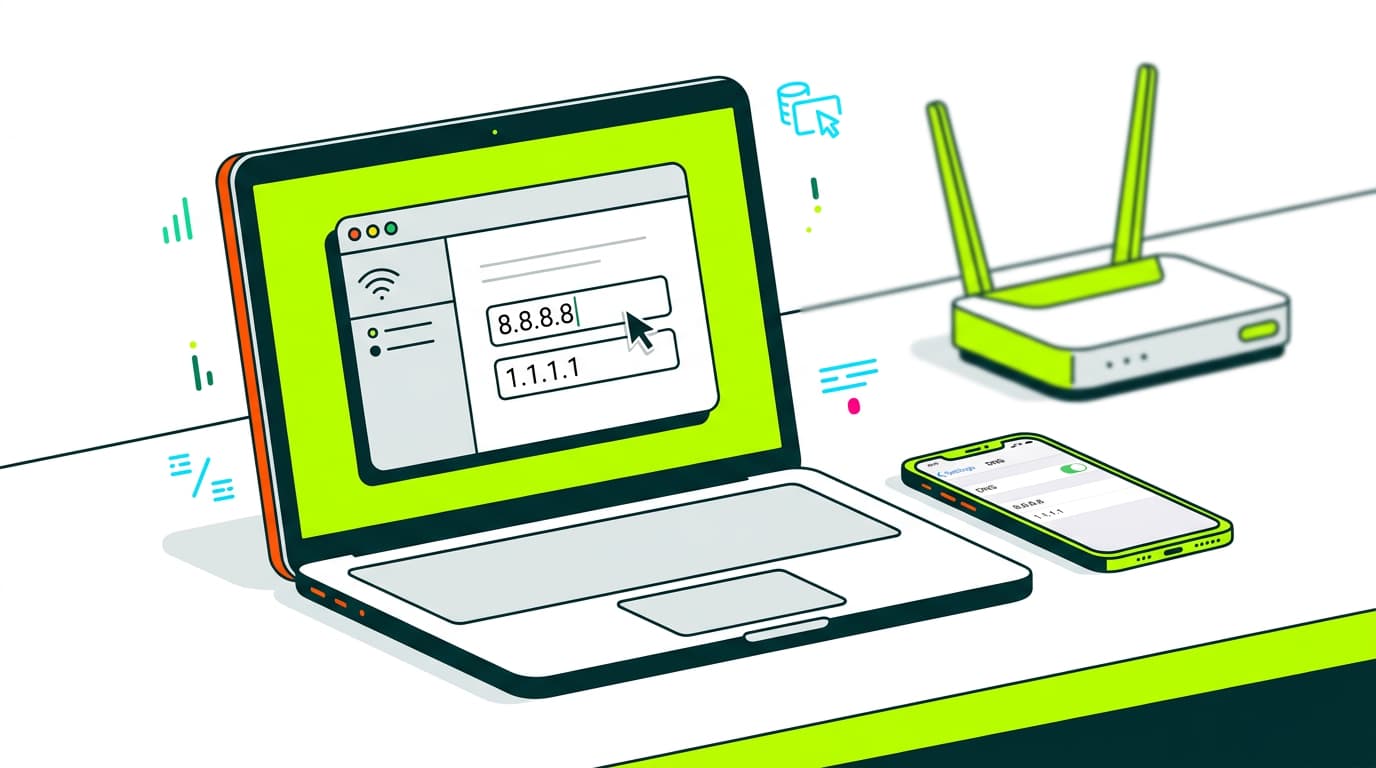
Changing your DNS can improve speed, privacy and security. Learn how to change DNS step by step on Windows, Mac, Linux, mobile and router.
If your connection has ever felt slow, certain pages don’t load properly, or you’re concerned about online privacy, changing DNS might be exactly what you need. It may sound technical, but it’s actually something you can do yourself in just a few minutes.
Here’s a clear guide to what DNS is, what it does, and how to change it on different devices — from your phone to your router.
What is DNS?
Put simply, when you type a web address, your device needs to know which server to connect to. That’s where DNS (Domain Name System) comes in.
It works like the internet’s contact list, turning easy-to-remember names into IP addresses that computers understand.
What is a DNS server?
A DNS server is responsible for carrying out that “translation”. By default, your connection uses the servers provided by your provider.
However, not all DNS servers are equally fast or secure. Some take longer to respond, while others may log your activity. That’s why more and more people choose to change their DNS server for a faster or more private alternative.
Why change your DNS server?
There are three main reasons to change DNS:
- Speed: Some DNS servers resolve addresses faster, reducing loading times.
- Privacy: Services like Cloudflare or Quad9 claim not to log your browsing activity.
- Security: Certain DNS providers automatically block malicious websites.
If you’re looking to improve any of these areas, changing DNS is a simple and effective step.
How to change DNS on Windows
If you’re using Windows 11, the process is straightforward:
Go to Settings > Network & Internet > Network properties and find the DNS settings.
From there, you can set manual DNS servers such as:
- Google: 8.8.8.8 and 8.8.4.4
- Cloudflare: 1.1.1.1 and 1.0.0.1
Make sure to save your changes before closing the window.
This method also works for changing DNS in Windows 10, with slight menu differences.
How to change DNS on macOS
On a Mac, go to System Settings > Network, select your connection (Wi-Fi or Ethernet), and click Advanced.
You’ll see a DNS tab where you can add new servers and remove the old ones. Save the changes and you’re done.
Cómo cambiar los DNS en Linux
Linux has many distributions, but in most (like Ubuntu), you can do it via: Settings > Network > IPv4 or IPv6 settings
Switch to manual mode and enter your preferred DNS servers.
You can also edit files like /etc/resolv.conf if you prefer using the terminal.
How to change DNS on Android
On Android devices, go to: Settings > Network & Internet > Advanced > Private DNS
Here you can enter a provider such as:
dns.googleone.one.one.one(Cloudflare)
If your device doesn’t support this option, you can still change DNS on Wi-Fi: Press and hold your network → Modify → IP settings → set DNS manually.
How to change DNS on iPhone
On iPhone or iPad go to Settings > Wi-Fi, tap the information icon (i) next to your network, and scroll to Configure DNS.
Select Manual, remove existing entries, and add your new DNS servers.
Keep in mind this only applies to that specific Wi-Fi network.
How to change DNS on your router
If you want all devices in your home to use the same DNS without setting them up individually, the best option is to change DNS on your router. Enter your router’s IP address in your browser (usually something like 192.168.1.1), log in, and find the network or WAN settings.
There, you’ll see fields for primary and secondary DNS. Save the changes and restart the router. From that point on, all connected devices — phones, laptops, tablets and consoles — will use the new DNS automatically.
If you’re also looking to improve your Wi-Fi coverage, this guide on amplifiers and Wi-Fi boosters can help. You can also check whether you have high-speed broadband available at home.
Changing DNS is a quick, free improvement for any type of connection. And if you already have a fast and stable connection, like Olin’s high-speed broadband, it helps fine-tune your online experience even further.

Very Satisfied
The service is excellent, and we always pay the same amount. We’ve been customers for three years. The staff at the store are very professional and serve us in three different languages!