


Olin > Blog > How to Save Mobile Data: 10 Tips to Make Your Data Plan Last Longer
How to Save Mobile Data: 10 Tips to Make Your Data Plan Last Longer
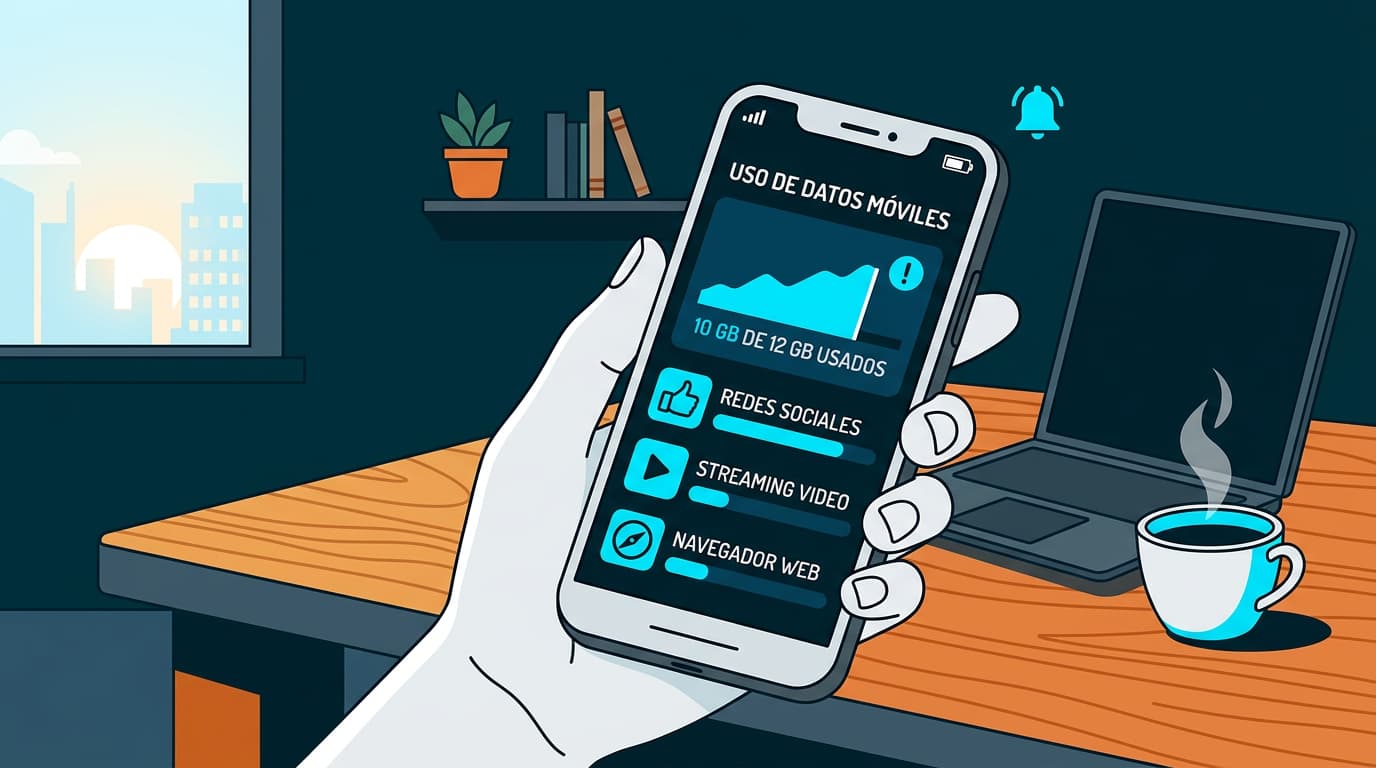
Without Wi-Fi and with a limited data plan, there may be months when your data simply isn’t enough. Save mobile data with these simple tips.
Running out of data before the end of the month is more common than it seems. Apps using data in the background, high-quality video streaming or automatic updates can quickly drain your allowance without you noticing.
In this article we explain how to save mobile data with simple smartphone settings and small changes in your daily habits. These tips will help reduce data usage, use less mobile data and make the most of your plan each month.
Keep your data usage visible on your screen
The first step to saving mobile data is knowing how much you actually use. Most mobile operating systems, including Android and iOS, include built-in tools that let you check your usage in real time.
On Android you can check this in Settings > Network & Internet > Data usage. There you’ll see your total monthly usage and a breakdown by app. Many devices also allow you to add a usage indicator to the status bar or set alerts when you reach a certain limit. If you want more detailed information, apps like My Data Manager or GlassWire provide deeper statistics and allow widgets on your home screen so you can monitor your usage at a glance.
On iPhone, data monitoring is integrated in Settings > Mobile Data. In this section you can see how much data each app has used and disable mobile internet access for those that don’t need it. You can also reset the counter manually at the start of your billing cycle to track usage more accurately each month. Although iOS doesn’t show a permanent counter on screen, apps such as My Data Manager or Data Usage allow you to create home-screen widgets to check consumption quickly.
Keeping this information visible helps you identify which apps consume the most data and when it happens. With that insight, it becomes much easier to adjust habits, limit background activity and save mobile data throughout the month.
Use Wi-Fi whenever possible
Connecting to Wi-Fi whenever you can is one of the most effective ways to reduce mobile data usage. When you’re at home, at work or anywhere that offers a secure connection, prioritise using Wi-Fi.
With Wi-Fi you can carry out heavier tasks without using the data included in your mobile plan. At home, having a reliable high-speed broadband connection also helps avoid unnecessary data consumption.
Avoid large downloads
Downloading large files such as films, series, games or even operating system updates can use a significant amount of data. It’s best to schedule these downloads when you’re connected to a stable Wi-Fi network.
Before starting a download, check the file size. If it’s large, consider waiting until you’re connected to Wi-Fi.
Remove apps you don’t use
Many apps can still use data in the background even when you’re not actively using them, updating content or sending notifications.
Regularly reviewing installed apps and removing the ones you no longer need is an effective way to reduce unnecessary data usage.
Every app you remove helps save data and also frees up valuable storage space on your device.
Disable automatic downloads in apps
Messaging apps such as WhatsApp or Telegram often have automatic downloads enabled by default. This means every photo, video, GIF or document you receive downloads automatically using mobile data if you’re not connected to Wi-Fi.
Go to each app’s settings and disable this option so you only download content manually when you need it. This small adjustment can significantly reduce your data usage by the end of the month.
Turn off automatic app updates
App updates are important for security and performance, but they can also be large in size. Configure your smartphone so updates only happen when connected to Wi-Fi.
This prevents updates from using up the data included in your plan.
You’ll find this option in the settings of your app store (Google Play Store or Apple App Store).
Restrict internet access for certain apps
Some apps don’t need constant internet access to work properly. Both Android and iOS allow you to restrict mobile data access for specific apps directly from the system settings.
Review data usage by application and disable access for those that don’t need it or that consume too much in the background.
This gives you more control over how your mobile data is used.
Reduce streaming quality
Streaming multimedia content is one of the biggest sources of mobile data consumption. Watching series in high definition or listening to music at maximum quality can quickly use up your allowance.
A simple solution is to lower playback quality in apps such as YouTube, Netflix or Spotify. Choosing standard quality instead of HD significantly reduces data usage.
Set a data usage limit
Modern mobile operating systems include a feature that allows you to set a monthly data limit. You can configure alerts to warn you when you’re approaching a certain threshold or even disable mobile data automatically.
This feature acts as a safety net, helping you avoid exceeding your plan and facing additional charges or reduced speeds.
On Android you’ll usually find this option in Settings > Network & Internet > Data usage. From there you can define your billing cycle and activate warnings when you reach a specific number of gigabytes. You can also set a maximum limit so the system automatically disables mobile data once it’s reached.
On iPhone the system does not automatically cut the connection when a limit is reached, but you can monitor usage in Settings > Mobile Data. In this section you can check how much data has been used during the current period and reset the counter at the start of your billing cycle for more accurate tracking. You can also disable mobile data for specific apps if you notice one using more than expected.
Download offline maps for GPS
Navigation apps such as Google Maps or Waze use data continuously to display maps and calculate routes. However, they also allow you to download maps of specific areas for offline use.
Before travelling, download the map of your destination while connected to Wi-Fi. This way you can navigate without using any of your mobile data.
Applying these tips will help you save mobile data and make your plan last throughout the month. With better control over your usage, you can browse with greater peace of mind. And if you find you still need more data, take a look at our mobile plans to find the one that fits you best.


Very Satisfied
The service is excellent, and we always pay the same amount. We’ve been customers for three years. The staff at the store are very professional and serve us in three different languages!