


Olin > Blog > How to Share Mobile Data Easily
How to Share Mobile Data Easily
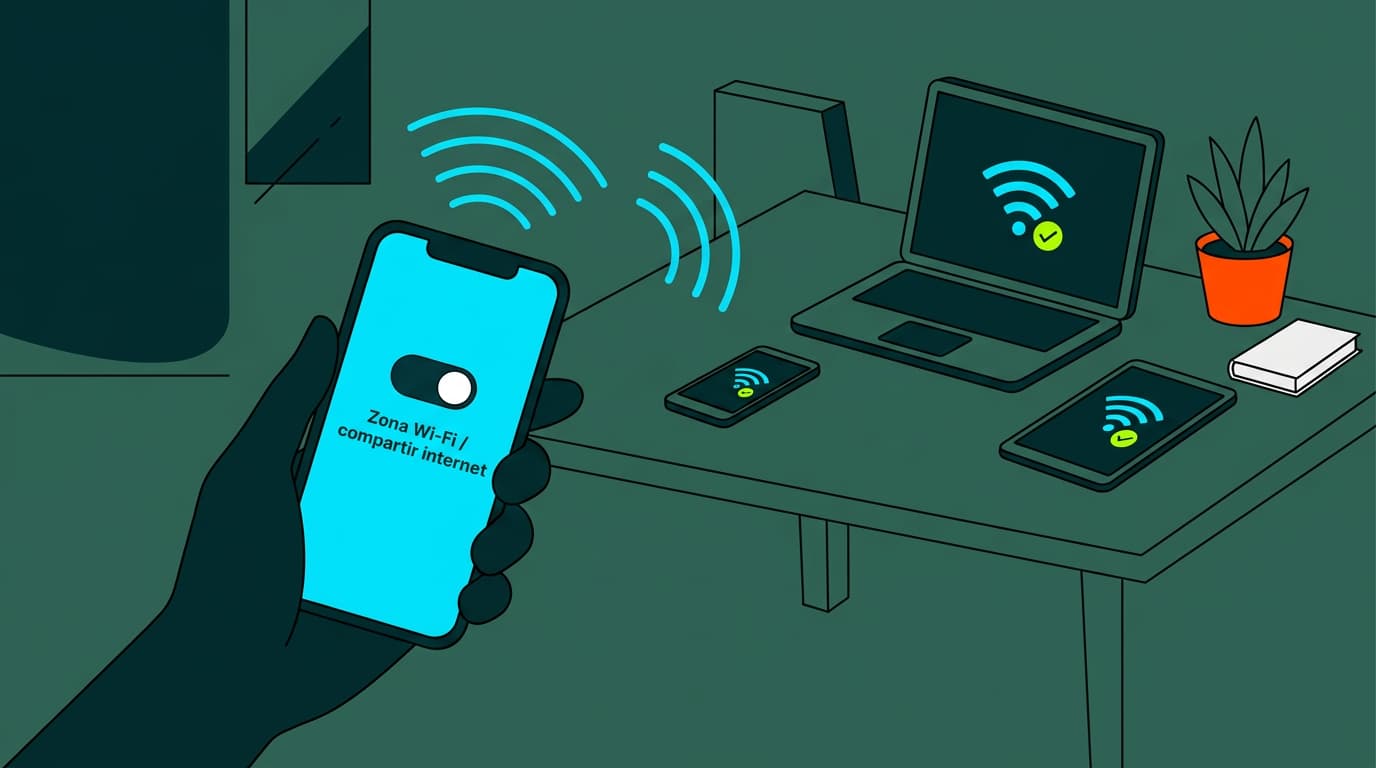
Sharing mobile data from your device can be very useful at times. Here’s how to do it quickly and easily. Take note!
Have you ever needed to share your phone’s mobile data with another device? It could be helping a friend who has run out of data, or connecting your laptop when there’s no Wi-Fi available. Sharing mobile data is a practical solution in many situations.
In this guide, we’ll walk you through how to share mobile data from your Android smartphone or iPhone to another phone, computer or even your TV. It’s simpler than you might think.
What Do You Need to Share Mobile Data?
Before you begin, make sure you have:
-
A mobile phone with an active data connection and enough data available in your plan.
-
The device you want to connect (another phone, a computer or a TV).
-
A connection method such as USB cable, Bluetooth or Wi-Fi (tethering or personal hotspot).
Once everything is ready, let’s get started.
Share Mobile Data from One Phone to Another
If you need to share your data connection with another smartphone, whether Android or iPhone, the process is straightforward. Here’s how to do it on each system.
How to Share Internet from an Android Phone
-
Go to Settings and look for Tethering & Portable Hotspot (the name may vary slightly depending on the model).
-
Turn on Portable Wi-Fi hotspot.
-
Set the network name (SSID) and password. Choose a secure password to prevent unwanted access.
-
On the other phone, search for the Wi-Fi network you’ve just created and enter the password to connect.
That’s it. The second phone will now be using the first phone’s mobile data.
How to Share Internet from an iPhone
-
Go to Settings and tap Personal Hotspot.
-
Turn on Allow Others to Join.
-
On the other device, find the iPhone’s Wi-Fi network (by default it will be “iPhone of [your name]”) and enter the password shown on the screen.
You can now browse on the second phone using the iPhone’s data connection. Keep an eye on your usage, as sharing data can quickly use up your allowance.
Share Mobile Data from a Phone to a Computer
Sometimes you may need to connect your computer to the internet using your smartphone’s mobile data. This is especially useful when there’s no Wi-Fi available. There are several ways to do this, but using a USB cable is usually the simplest and most stable option.
Share Internet via USB
-
Connect your phone to your computer using a USB cable.
-
On your phone, go to Settings and enable USB tethering (on iPhone, this is within Personal Hotspot).
-
Your computer should automatically detect the new network connection and begin using the phone’s data.
If you’re using Windows, you may need to install the phone’s drivers first. On a Mac, open Network Settings and select the USB connection.
Share Mobile Data from a Phone to a TV
Some smart TVs allow you to connect directly to your phone via Wi-Fi and use its data connection. To do this:
-
Activate the Wi-Fi hotspot on your phone (as explained above).
-
On your TV, go to Network Settings and select your phone’s Wi-Fi network.
-
Enter the password and connect.
Your TV will now be online using your mobile data. It’s a practical solution for streaming when you don’t have high-speed broadband available at home.
Share Mobile Data via Bluetooth
Another wireless option is Bluetooth, although it’s slower than Wi-Fi. To use it:
-
Pair your phone with the other device via Bluetooth.
-
In your phone’s Bluetooth settings, enable Internet access or a similar option.
-
On the other device, select the paired phone as the internet source in its network settings.
Bluetooth can be useful for older devices without Wi-Fi, or if you want to reduce battery consumption.
A Better Way to Stay Connected at Home
Sharing mobile data is a quick and easy solution when you need to connect other devices on the go. Whether you use Android or iPhone, you can enable a Wi-Fi hotspot or share your connection via USB or Bluetooth in just a few steps.
However, for everyday use across all your devices, nothing compares to having reliable high-speed broadband at home. With Olin broadband, you get fast, stable speeds and can connect everything without worrying about data limits. Our broadband and mobile bundles are designed to give you great value and dependable service.
At Olin, we’re here to help you find the right connectivity solution for your home. Switch today and enjoy internet the way it should be.

Very Satisfied
The service is excellent, and we always pay the same amount. We’ve been customers for three years. The staff at the store are very professional and serve us in three different languages!