


Olin > Blog > How to view saved WiFi passwords on your phone
How to view saved WiFi passwords on your phone
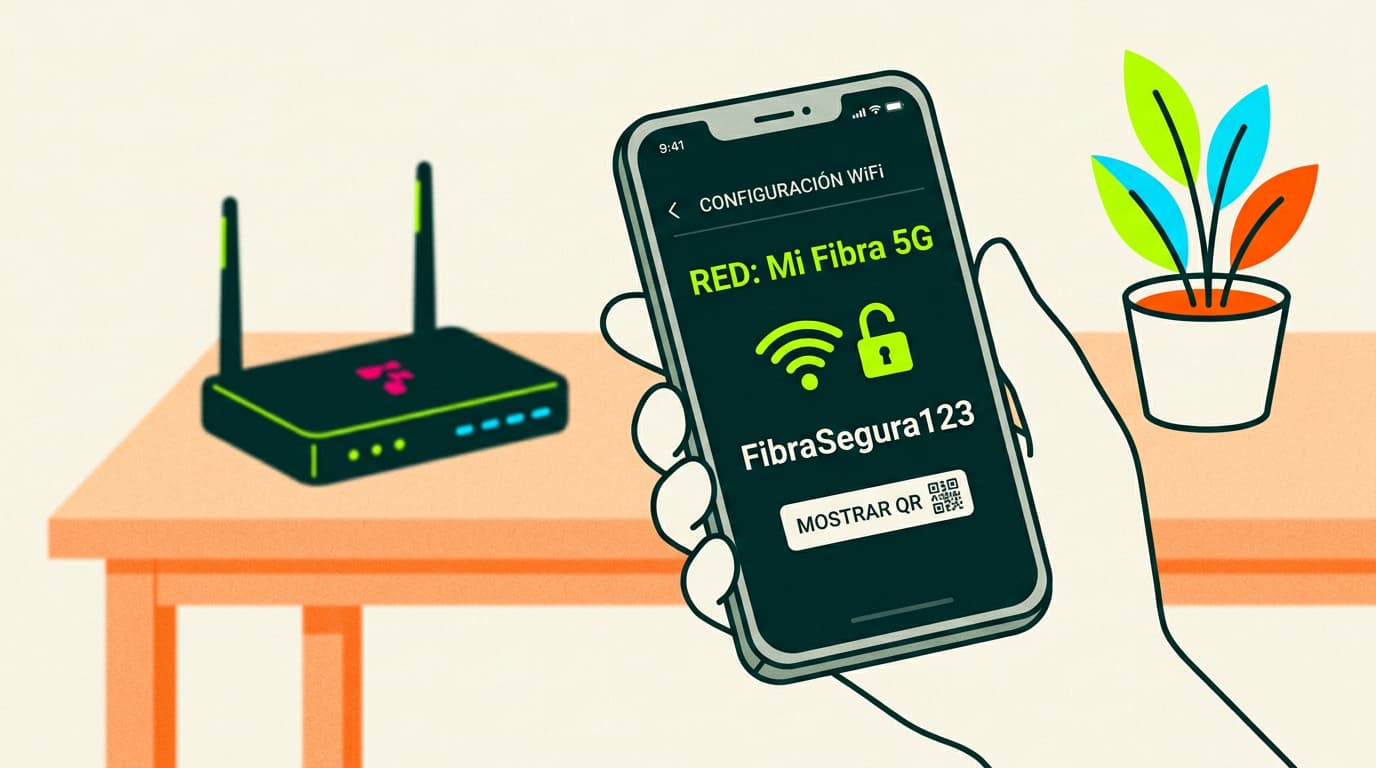
Losing or forgetting your internet password is very common. Find out how to view your WiFi password on your mobile phone quickly and easily.
Have you ever needed to check your WiFi password on your phone but couldn’t remember where you wrote it down? Don’t worry — it happens to everyone. Losing or forgetting your internet password is far more common than you might think.
In this guide, we’ll show you how to easily access the WiFi passwords saved on your smartphone, whether you use Android or iPhone. Keep reading to see the step-by-step instructions.
How to view saved WiFi passwords on Android
Android is the most widely used operating system. If you use an Android phone, follow the steps below.
With root access
If your Android phone is rooted, you can use specialised apps to view saved WiFi passwords. One of the most popular is WiFi Key Recovery. Simply download the app, open it, and you’ll see a list of all the WiFi networks you’ve connected to, along with their passwords. That’s it.
Without root access
Since Android 10, viewing your WiFi password on your phone has become much easier. This version of Android introduced a very useful feature that allows you to share saved WiFi passwords without needing root access.
If your phone runs Android 10 or later, follow these steps to view and share your WiFi password:
-
Open the Settings app on your phone.
-
Go to Network & Internet or Connections.
-
Tap Wi-Fi to access wireless network settings.
-
Select the network whose password you want to see.
-
Tap the QR code icon to open the Share option.
-
Unlock your phone using fingerprint, PIN, pattern, or password.
-
Done. A QR code containing the WiFi password will appear on the screen. You can share it with other Android 10+ devices so they can connect instantly.
How to view saved WiFi passwords on Huawei or Xiaomi phones
On most recent Huawei and Xiaomi models running the latest versions of EMUI or MIUI, the process is very similar to standard Android devices.
You can usually follow the same steps described in the Without root access section, depending on whether your phone is running Android 10 or later.
How to view saved WiFi passwords on an iPhone
If you use an iPhone, you can easily view the passwords for WiFi networks you’ve connected to before. Just follow these steps:
-
Go to Settings > Wi-Fi.
-
Tap the “i” icon next to the network you want to check.
-
Select Share Password.
-
Unlock your iPhone using Face ID, Touch ID, or your passcode.
-
The password will appear at the bottom of the screen.
As you can see, viewing your WiFi password on your phone is quick and simple on both Android and iPhone. You just need to know where to look and follow a few easy steps.
Improve WiFi coverage in your home
If, in addition to recovering your password, you want to make sure your WiFi reaches every corner of your home, our WiFi Coverage+ service with Mesh technology eliminates dead zones and improves connection stability throughout the house.
Tips to avoid losing your WiFi password
Now that you know how to view saved WiFi passwords on your phone, here are a few tips to help you avoid losing them again:
-
Store your password in a secure place, such as a password manager.
-
Share the password with family members or housemates.
-
Choose a password that’s easy for you to remember but still secure.
-
Change your WiFi password regularly for security, and make sure you save the new one safely.
At Olin, we understand how important it is to stay connected. That’s why we offer high-quality broadband and mobile services on the Costa del Sol. If you’re looking for a fast and reliable internet connection, don’t hesitate to get in touch.
We hope this guide on how to view your WiFi password on your mobile has been helpful. With Olin, you’ll always stay connected.




Very Satisfied
The service is excellent, and we always pay the same amount. We’ve been customers for three years. The staff at the store are very professional and serve us in three different languages!