


Olin > Blog > Change your WiFi password step by step
Change your WiFi password step by step
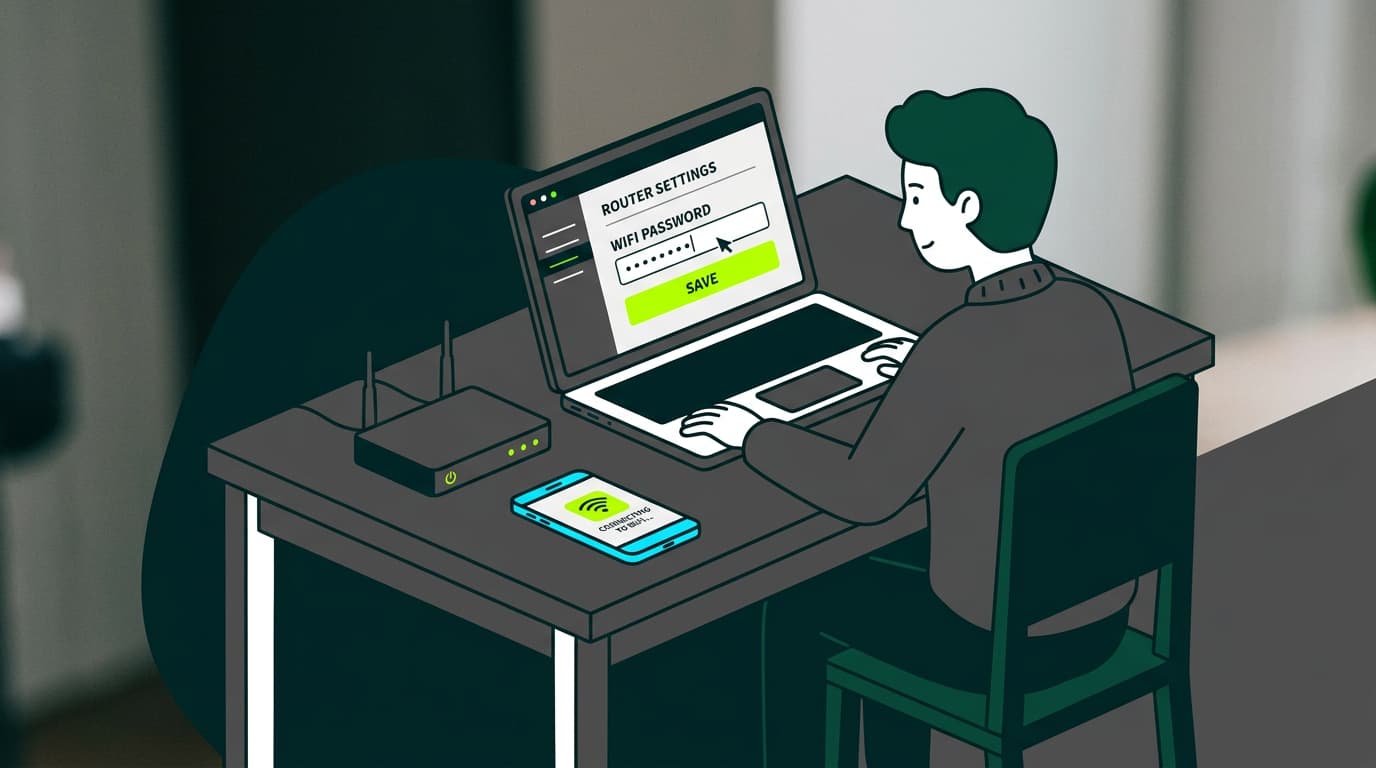
Learn how to change your WiFi password step by step and set up a secure key to prevent others from using your connection
Protecting your home network from intruders is essential for safe and worry-free browsing. In this guide, we explain how to change your WiFi password step by step in just a few minutes. We’ll also cover why it’s important to do this regularly and share practical tips to create a strong password that keeps your connection secure.
Why should you change your WiFi name and password?
Changing your WiFi network name (SSID) helps avoid confusion with nearby networks and makes it easier to identify your own. This is especially useful if you live in an area with many available WiFi networks.
Most routers come with default network names that include the brand or model of the device. Replacing this generic name with a custom one can make your network less attractive to potential attackers, as default names often suggest the network hasn’t been properly configured or secured.
There are several reasons why it’s recommended to change your WiFi password regularly:
-
Prevent unauthorized access by neighbors or hackers
-
Protect your personal and financial data from identity theft
-
Improve connection speed and performance by limiting the number of connected devices
-
Update your network security if you suspect someone may have obtained your password
How to change your WiFi password
Let’s go through how to change your WiFi password. The process may vary slightly depending on your router model, but in general, these are the steps:
From the IP address 192.168.1.1
-
Connect your device (PC, mobile, or tablet) to your home WiFi network.
-
Open a web browser and type 192.168.1.1 or 192.168.0.1 into the address bar. These are the most common IP addresses used to access router settings.
-
Enter your router’s username and password. If you’ve never changed them, you’ll usually find the default credentials on a label on the router or in the user manual.
-
Once inside the settings interface, look for the “Wireless” or “WiFi” section.
-
Find the option to change the WiFi password and enter a new one. Make sure to save it somewhere secure.
-
Save the changes and restart the router to apply the new settings.
From a Windows device
If you use Windows, you can view your current WiFi password by following these steps:
-
Click the WiFi icon in the taskbar.
-
Select “Network properties.”
-
Go to “Security” and check “Show characters” to reveal your current password.
To change your WiFi password on Windows:
-
Access the router settings as explained above.
-
Update the password in the appropriate section.
-
Reconnect your devices using the new password.
From a Mac, Linux, or Ubuntu device
On Mac, Linux, or Ubuntu systems, you can check the saved WiFi password as follows:
-
Open Keychain Access (Mac) or your password manager (Linux/Ubuntu).
-
Find your WiFi network name and open its properties.
-
Check “Show password” to view the current WiFi password.
To change the WiFi password on these systems:
-
Access the router settings through a web browser.
-
Update the password in the corresponding section.
-
Reconnect your devices using the new password.
Tips for creating a secure WiFi password
When choosing a new WiFi password, keep these recommendations in mind:
-
Use a sufficient length: At least 12 characters to make it harder to crack.
-
Avoid personal information: Don’t use names, birth dates, or addresses.
-
Mix characters: Combine uppercase and lowercase letters, numbers, and special symbols.
-
Make it memorable: Use a phrase or acronym that’s easy for you to remember but hard for others to guess.
-
Update it regularly: Change your WiFi password every 2–3 months to keep your network protected.
At Olin, we hope this guide has helped you understand how to change your WiFi password and keep your connection secure. Remember, our team is always available to help if you have any questions or technical issues. Don’t hesitate to contact us.


Very Satisfied
The service is excellent, and we always pay the same amount. We’ve been customers for three years. The staff at the store are very professional and serve us in three different languages!